Can a PDF have a virus? Practical solutions for cyber-safe businesses
Joanna Krysińska
Summary: PDFs can carry malware through scripts, embedded files, and exploits. Learn how to identify threats and protect your business.
Yes, PDF documents can contain viruses. Although many users treat them as harmless text files, cybercriminals can hide malicious code, tracking scripts, and phishing links directly inside PDFs.
PDF vulnerabilities are an active threat. For example, in early 2026, Adobe had to patch a critical zero-day exploit in Acrobat Reader that hackers had been weaponizing for months to silently steal corporate files.
These risks also extend to the software used to open PDFs. Organizations that want to cut costs often download unverified, third-party PDF apps, which creates an unmonitored attack surface.
But how can you protect your business from these hidden threats? In this guide, we’ll explain how malicious PDF files operate, how they infect devices, and what security measures can keep your organization safe.
Key takeaways
PDF files can contain malicious code that exploits vulnerabilities to spread malware.
Cybercriminals use PDF documents to deliver malware, execute code, and steal sensitive information.
Some malicious PDF files contain JavaScript exploits, embedded executables, or phishing links.
Email attachments and downloading PDFs from untrusted sources are significant security risks.
Businesses should implement robust cybersecurity measures, including antivirus software and real-time malware protection.
How can a PDF document contain a virus?
Cybercriminals rarely send raw, suspicious program files directly because security filters block them instantly. Instead, they disguise their attacks and infect PDFs with different types of viruses containing malicious code.
How can PDFs become dangerous? They hide threats inside them, and here are the 4 main types of them:
Malware. Software specifically designed to corrupt, disrupt, or gain unauthorized access to your computer.
Viruses. Hidden programs that can replicate themselves, alter your system settings, or completely delete your data.
Trojans. Malicious programs disguised as legitimate files that secretly spy on you or harvest your personal data.
Phishing links. Fake clickable links or QR codes embedded in a PDF document. Clicking on them takes you to fraudulent pages that trigger drive-by downloads of malware.
Because PDF files look so innocent on the surface, attackers use a variety of creative methods to conceal their payloads within the document’s code.
What types of malware hide in PDFs?
While PDFs are commonly used for business documents, reports, and invoices, they can easily carry harmful software. Below are some ways an infected PDF file can pose a risk to your system.
Spyware, adware, and scamware
One of the biggest PDF risks comes from the software you use to open them. Shady applications and malicious files often look legitimate but are engineered for corporate espionage, data tracking, or financial fraud.
Spyware and espionage. This software quietly tracks your digital footprint. Threat actors use it to access corporate or government documents to steal sensitive data.
Adware bundling. Adware usually piggybacks on cheap, third-party PDF readers downloaded from unverified online marketplaces. These adware programs flood your system with tracking cookies and pop-ups.
Scamware. Apps like PDF Guru or PDF Master are textbook scamware. They charge steep subscription fees for broken features and route your files through black-box servers with unknown ownership.
JavaScript code exploits
Some PDF viruses use JavaScript code. This programming language allows interactive features like forms or digital signatures. However, cybercriminals can exploit this functionality to run hidden scripts when the document is opened. These scripts can:
Download and install malware on the system
Steal sensitive information, such as login credentials
Redirect users to phishing websites designed to capture personal data
Embedded executable files and malicious software
PDF documents can contain embedded files, including executable programs (.exe), scripts, or other payloads. If a user clicks on an embedded file, it can install harmful software on the device. Common examples include:
Ransomware that encrypts files and demands payment
Keyloggers that capture keystrokes to steal passwords
Trojans that provide remote access to the system
PDF viruses that execute code
Certain malicious PDF files exploit vulnerabilities in PDF readers to run code without the user’s knowledge. This method allows attackers to:
Distribute malware across networks
Modify system files
Gain unauthorized access to company resources
Common PDF attack scenarios
Since PDF files are frequently shared in business settings, bad actors take advantage of that to trick users into opening infected files. Below are some of the most common attack scenarios businesses should be aware of:
Email attachments. Cybercriminals often distribute compromised PDF files through phishing emails, impersonating trusted senders
Fake invoices and reports. Fraudsters send malicious PDFs disguised as legitimate business documents
Downloadable PDFs on websites. Attackers upload infected files to compromised websites, luring victims into downloading PDF files
These methods allow malicious actors to distribute malware quickly without raising suspicion. Once a harmful PDF is opened, it can exploit vulnerabilities, run code, and steal sensitive data. Understanding how these attacks work is the first step in preventing them.
Does your business need Threat Protection?
See which security challenges NordLayer can solve.
Now, let’s examine how an infected PDF file infiltrates your system.
How PDF viruses infect your device
A compromised PDF file can spread malware in various ways:
Exploiting software vulnerabilities. If a PDF reader isn’t updated, attackers can use known security flaws to execute malicious code.
Encouraging users to enable permissions. Some PDFs request additional permissions that, when granted, allow malicious actions.
Triggering automatic scripts. JavaScript-based attacks can initiate downloads or connect to malicious servers.
Embedding infected links. Clicking on a link inside a PDF may redirect users to phishing pages designed to steal credentials.
Other hidden threats in PDF attachments
While malicious PDFs are often associated with direct malware infections, they can also serve as gateways for other cybersecurity threats. Bad actors are always improving their tactics. They embed hidden dangers within seemingly harmless documents to compromise devices and steal sensitive data.
Understanding these risks is essential for businesses looking to protect their cyberspace.
Malicious links and phishing attempts
Many malicious PDFs contain links that appear legitimate but direct users to harmful websites. These sites may:
Trick users into entering login credentials.
Install malware upon page load.
Request fake security updates to compromise devices.
Hidden form fields and data harvesting
Attackers can embed hidden form fields within PDF documents to collect sensitive data. Unsuspecting users might unknowingly submit information such as:
Banking details
Company login credentials
Personal identification numbers
Additional threats to watch for
Beyond traditional malware and phishing tactics, additional threats that can compromise your security are:
Obfuscated code. Malicious PDFs can use encrypted or hidden code to bypass security detection
Redirect chains. Clicking a link in a PDF might trigger multiple redirects (a bunch of hidden websites) before landing on the final malicious page
These hidden threats illustrate how PDFs can be manipulated for cyber-attacks beyond traditional malware infections. By recognizing these dangers, businesses can take proactive steps to secure their systems. Next, let’s explore how to identify the signs of a malicious PDF before it compromises your security.
Signs of a malicious PDF
Be cautious if you notice any of the following:
Unexpected prompts requesting permissions
PDF attachments from unknown senders
Unusual file sizes or strange formatting
Warning messages from your PDF reader or antivirus software
First of all, act quickly and stay calm. To mitigate the potential damage, follow these 5 simple steps:
1. Disconnect the device
Many PDF viruses require an active internet connection to communicate with the perpetrators or to facilitate unauthorized remote access, so first disconnect your device from the internet. Turn off your Wi-Fi, unplug your Ethernet cable, and disable cellular data on your phone.
Isolating the device stops the malware from spreading to other systems on your network or from exfiltrating sensitive data to the attacker.
2. Scan your device for viruses
Once your device is isolated, scan it with up-to-date antivirus software. Antivirus programs help detect, stop, and remove various types of malware, including malware embedded in malicious PDFs. This scan can identify and delete the PDF virus and prevent further infection of your device.
3. Back up your critical data
Regular data backups are a great cybersecurity practice, but doing an immediate backup after a malicious PDF download is essential. Malware from infected PDFs can sometimes initiate attacks that steal or erase the data from your device.
Remember to store backups on external hard drives or secure cloud storage to ensure you can restore your data even if the device is compromised.
4. Change your login credentials
If you have downloaded a malicious PDF and your device has been compromised, cybercriminals might be able to access your login credentials stored on it. Update your passwords for all sensitive accounts immediately.
Having a robust credential manager can help generate new, strong, and unique passwords quickly. You can also enable multi-factor authentication (MFA) on all your critical accounts to add an essential layer of security and make it harder for attackers to gain access even with stolen credentials.
5. Deploy download protection
Implementing a security feature that protects you from malicious attacks hidden in a PDF is key to your business security. This way, you can detect malware in real time and prevent it from infecting your network.
How to protect against PDF viruses
Protecting your business from malicious PDFs means taking a proactive approach. Implementing best practices can significantly reduce the risk of malware infections and data breaches.
To protect your business from PDF malware, follow these security measures:
Use real-time malware protection. Deploy security solutions that scan PDF attachments before opening. Many modern antivirus software solutions include real-time scanning features that help block suspicious PDFs immediately.
Keep software up to date. Regularly update your PDF reader, operating system, and antivirus software to patch vulnerabilities. Cybercriminals exploit outdated software with known security flaws, so keeping all applications current is essential. Enabling automatic updates for your antivirus software ensures you have the latest threat definitions and security patches.
Disable JavaScript in your PDF reader. This reduces the risk of script-based attacks. Disabling JavaScript in your PDF viewer limits the chances of unauthorized code running on your system and strengthens overall security.
Avoid opening suspicious email attachments. Verify senders before downloading PDFs. Attackers frequently disguise malicious PDFs as legitimate business documents, such as invoices or contracts. If you happen to receive an unexpected attachment, please confirm its legitimacy through a separate communication channel before opening it.
Enable email security filters. Use advanced email protection to detect and block malicious PDFs. Many email security solutions offer automated scanning and filtering of incoming messages, preventing phishing emails and malware-laden attachments from reaching your inbox. Configuring these filters to work alongside your antivirus software strengthens your business’s defense against cyber threats.
Train employees on cybersecurity awareness. Educate your team about recognizing phishing emails and malicious PDF files. Regular cybersecurity training sessions help employees identify suspicious attachments, avoid clicking on malicious links, and follow best practices for handling digital documents. Encouraging a security-conscious workplace culture is one of the most effective ways to prevent cyberattacks.
By following these best practices, businesses can create a safer digital environment and minimize the risk of falling victim to PDF-based cyber threats. However, staying vigilant and employing additional security solutions is just as critical.
How to scan a PDF for viruses
Traditionally, checking PDFs for viruses required manual effort. Employees had to manually upload documents to online scanners themselves, which slowed down workflows and increased the risk of human error.
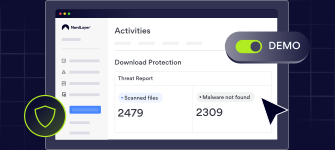
However, with NordLayer’s download protection, which uses AI technology, you can detect new or unknown malware types and identify files with double extensions (e.g., filename.csv.exe). The feature operates locally on devices and also provides offline scanning.
Here is how scanning a PDF for viruses works:
Instant, real-time scanning. The moment you download a PDF from the internet, an email attachment, or a workplace app, download protection automatically scans it. There is no need for manual uploads.
AI-powered, intelligent threat detection. The feature uses AI and threat intelligence data feeds to spot both known and unknown threats and complex, zero-day malware. It can even catch advanced cloaking techniques, like a piece of malware disguised with a double extension (e.g., invoice.pdf.exe).
Automatic threat removal. If a PDF is malicious, it is instantly and automatically deleted from the device before it can be opened. You get a quick alert, and the event is immediately logged on the administrator’s Control Panel.
Always-on security. Because this feature operates locally on the endpoint, it stays active in the background at all times.
How NordLayer can help
Cybercriminals constantly evolve their tactics, making it crucial to implement proactive security measures. NordLayer’s toggle-ready network security platform offers real-time malware detection to scan and block malicious downloads before they reach your systems.
With NordLayer’s advanced security features, businesses can:
Reduce risk from malicious attachments, including PDF-based threats
Block access to suspicious links and phishing attempts
Protect sensitive company data from cyber threats
Strengthen overall network security and reduce attack surface
Protect your company from PDF malware and ensure a safer digital workspace today.
Joanna Krysińska
Senior Cybersecurity Copywriter
Joanna writes about zero trust, network security, access control, and threat prevention, but her cup of tea is compliance and how regulations shape security controls.
Her work also includes the dark web topics and the methods cybercriminals use to target companies, such as social engineering or ransomware attacks, for example.