Summary: 10 practical safe browsing tips to reduce phishing, malware, and data breaches, helping keep employees, devices, and corporate information secure online.
Safe web browsing is no longer as simple as avoiding suspicious links. As cyber threats blend social engineering, malicious code, and automated attacks, organizations need clear, consistent, and safe browsing practices to protect employees, data, and accounts. Regardless of the tools or platforms your team uses, security-aware browsing habits help reduce the risk of phishing attacks, identity theft, and data breaches.
This guide presents the most effective ways to stay safe online, how to recognize risky web pages, and the best practices when browsing the internet. You’ll also learn how NordLayer helps secure internet traffic, block untrustworthy sites, and protect your workforce.
Key takeaways
Secure browsing practices help reduce phishing attempts, malware infections, data breaches, and credential theft across organizations.
Verifying web addresses, using password managers, keeping software updated, and avoiding malicious sites are essential everyday habits.
Encrypting internet traffic, enabling multi-factor authentication (MFA), and limiting the sharing of sensitive business information significantly lower the risk.
Since human error remains a leading cause of incidents, making employee awareness and consistent browsing behavior is critical to web security.
Business-grade controls—such as DNS filtering, download scanning, and protected browsing environments—help reduce mistakes and enforce protection at scale.
Dangers of unsafe browsing
Even experienced users can underestimate how quickly unsafe browsing habits can turn into security issues. Modern threats don’t rely on obviously malicious websites. Instead, attackers use trusted-looking pages, compromised legitimate sites, and sophisticated social engineering to lure users into revealing sensitive data or downloading harmful files.
In business environments, where employees regularly access their accounts, documents, and SaaS platforms, a single mistake can escalate into a costly incident. Unsafe browsing practices can lead to several high-impact risks:
Exposure to phishing
Phishing sites mimic real web pages—such as login screens, cloud dashboards, and payment portals—to trick users into entering their credentials. Verizon’s 2024 Data Breach Investigations Report links phishing to 31% of breaches, confirming credential theft as one of the most common initial attack vectors.
Drive-by downloads and malicious scripts
Compromised or poorly maintained websites may automatically execute malicious scripts or initiate malware downloads without user interaction. Even everyday browsing of potentially dangerous sites can result in ransomware, spyware, or session hijacking, allowing threats to spread across corporate networks.
Use of unsecured connections
Pages without TLS encryption (HTTP instead of HTTPS) expose internet traffic to interception. This makes Man-in-the-Middle (MitM) attacks easier, especially on public Wi-Fi, where attackers can inject malicious code or alter the web address displayed to the user.
Related articles

Anastasiya NovikavaDec 5, 202510 min read

Agnė SrėbaliūtėJan 26, 20267 min read
Unintentional data exposure
Unsafe browsing—especially on unmanaged or personal devices—significantly increases risks of data leaks. IBM’s 2024 Cost of Data Breach Report shows that 74% of breaches were caused by human error, such as visiting a malicious website, ignoring a browser warning, or entering sensitive information into an untrusted form.
Compromise through web browser extensions
A growing number of incidents involve malicious Chrome extensions disguised as productivity tools. In 2023, a single malicious extension downloaded more than 1.5 million times stole cookies and session tokens, giving attackers access to corporate SaaS apps without passwords.
Supply-chain exposure via compromised websites
Attackers frequently target well-known, legitimate sites to insert malicious ads or JavaScript skimmers—a tactic used in the massive Magecart (digital skimming) attacks, affecting thousands of businesses. Even trusted websites can temporarily become dangerous browsing environments.
The human factor
Despite growing awareness of cyber threats, human behavior remains one of the biggest security challenges. Users may unintentionally:
Ignore browser warnings
Reuse passwords across multiple accounts
Download files without verifying the source or upload sensitive data to unverified or unapproved locations
Copy or paste confidential information into untrusted websites, apps, or forms
Automatically trust convincing interfaces or domains
This combination of behavioral risks and realistic attacker techniques makes unsafe browsing a significant business liability—not just an inconvenience.
To avoid these risks, users and businesses must adopt browsing practices that protect both personal and corporate data.
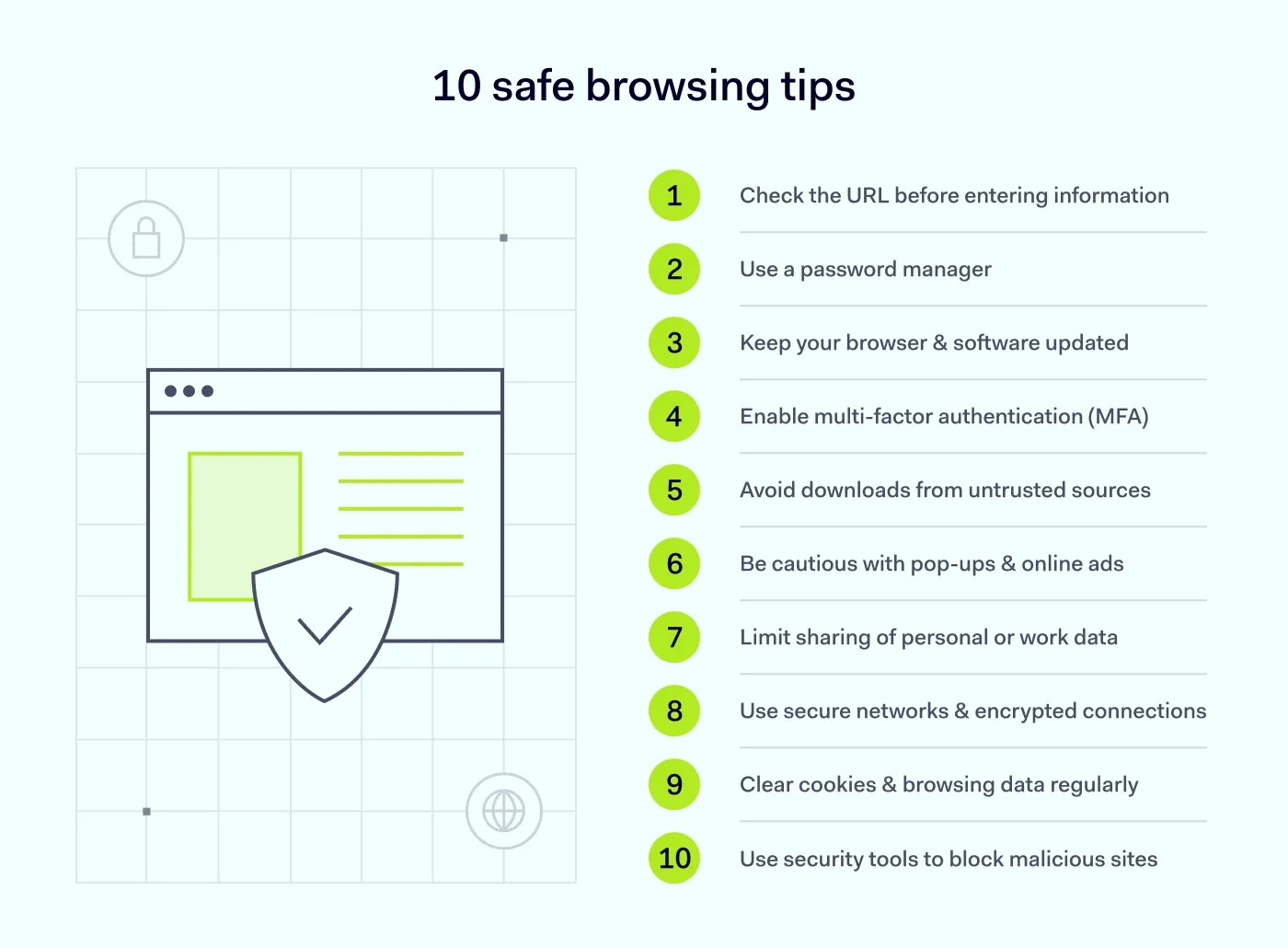
10 safe browsing tips
Below are ten practical, organization-friendly browsing tips that help reduce risk across devices, browsers, and online workflows.
1. Check the URL before entering information
Always verify the web address (URL) to ensure you're on a legitimate site, not a spoofed copy designed for phishing purposes. Attackers often create look-alike domains with subtle misspellings or swapped characters to mimic valid pages. Look for the security padlock symbol and double-check that the domain matches exactly before entering personal information into a website.
2. Use a password manager instead of reusing credentials
Reusing passwords dramatically increases the risk of breaches and credential-stuffing attacks. A password manager not only generates strong, unique credentials but also autofills them only on the correct domain—preventing you from accidentally entering passwords on fraudulent websites. This is especially relevant when managing multiple business accounts.
3. Keep your browser and software updated
Outdated software is one of the most easily exploited weaknesses. Regular security updates patch vulnerabilities that cybercriminals target through malicious sites and drive-by downloads. Whether you use Google Chrome or another web browser, enable automatic updates to ensure you always have the latest security protection, especially when handling business-critical web applications.
4. Use multi-factor authentication (MFA) whenever possible
MFA adds a critical layer of security to your accounts, ensuring attackers can’t easily break in even if your password is stolen through phishing or unsafe browsing. While MFA isn’t foolproof, it significantly reduces the likelihood of credential abuse and unauthorized access to corporate data or cloud applications.
5. Avoid downloading files from untrusted sources
Unsafe downloads are a major threat vector for malware infections. Stick to official vendors, trusted partners, or verified app stores. Files obtained from unofficial sites, free-download portals, or cracked-software pages frequently contain hidden payloads designed to compromise devices or steal company data. When possible, rely on solutions with download protection to block risky files in real time.
6. Be cautious with pop-ups, ads, and unfamiliar web pages
Malvertising attacks can hide malware inside online ads—even on reputable websites. If a page triggers excessive pop-ups, redirects, or unexpected download prompts, close it immediately. Ad-blocking tools or enterprise-grade DNS filtering can significantly reduce exposure to these threats.
7. Limit sharing of information online
Do not enter business credentials, personal data, or financial details on unfamiliar or unsecured sites. Limit personal information sharing on social media to protect against account takeover. Train employees to pause before sharing personal information that could contribute to identity or internal compromise.
8. Use secure networks and encrypted connections
Public networks are notoriously insecure. Attackers can intercept connections, tamper with browsing sessions, or redirect you to fake pages. If you must connect from such a network, always encrypt your traffic using like a business VPN to prevent unauthorized access or credential leakage.
9. Clear cookies and browsing data regularly
Tracking cookies and cached information can reveal details about your online accounts or interests. Clearing browsing data periodically helps reduce tracking risks and prevents unauthorized access on shared devices.
10. Install security tools that protect against malicious web activity
Enterprise-grade web protection tools add an important layer of defense beyond the browser. DNS filtering blocks access to malicious domains, download scanning detects infected files, and isolated browsing environments reduce exposure to high-risk sites. These measures can help prevent serious incidents, even if a user accidentally clicks a harmful link.
Close the tabs on browser threats. Open one for security
Your first line of defense starts at the Business Browser
Secure web browsing made easier with NordLayer
NordLayer helps organizations enforce safe browsing habits across devices, teams, and offices—without complicating workflows. Three technologies work together to protect users from internet-based threats:
Enterprise Browser
Designed for Zero Trust environments, a dedicated Business Browser—a NordLayer project—helps isolate business activity from personal browsing. It enables organizations to enforce granular security policies, gain visibility into browser-based activity (including shadow IT usage), and prevent data leaks, all while preserving a familiar, user-friendly browsing experience.
Business VPN
When accessing cloud services or browsing online, NordLayer’s Business VPN encrypts all traffic to prevent interception. This protects online accounts, credentials, and sensitive data from attackers on shared or untrusted networks.
DNS Filtering & Download Protection
To prevent users from reaching malicious sites, NordLayer’s DNS Filtering blocks domains associated with malware, phishing, and fraudulent activity. Meanwhile, Download Protection scans files for malware and harmful scripts—an extra safeguard against drive-by downloads and compromised websites.
Together, these features support a modern, safe browsing strategy, helping organizations enforce best practices, reduce risk, and keep employees protected online.
Agnė Srėbaliūtė
Senior Creative Copywriter
Agne is a writer with over 15 years of experience in PR, SEO, and creative writing. With a love for playing with words and meanings, she crafts content that’s clear and distinctive. Agne balances her passion for language and tech with hiking adventures in nature—a space that recharges her.